Once you have a wall
Tips & tricks
Six things worth knowing, each one a click or two away.
1Shape your board on the wall
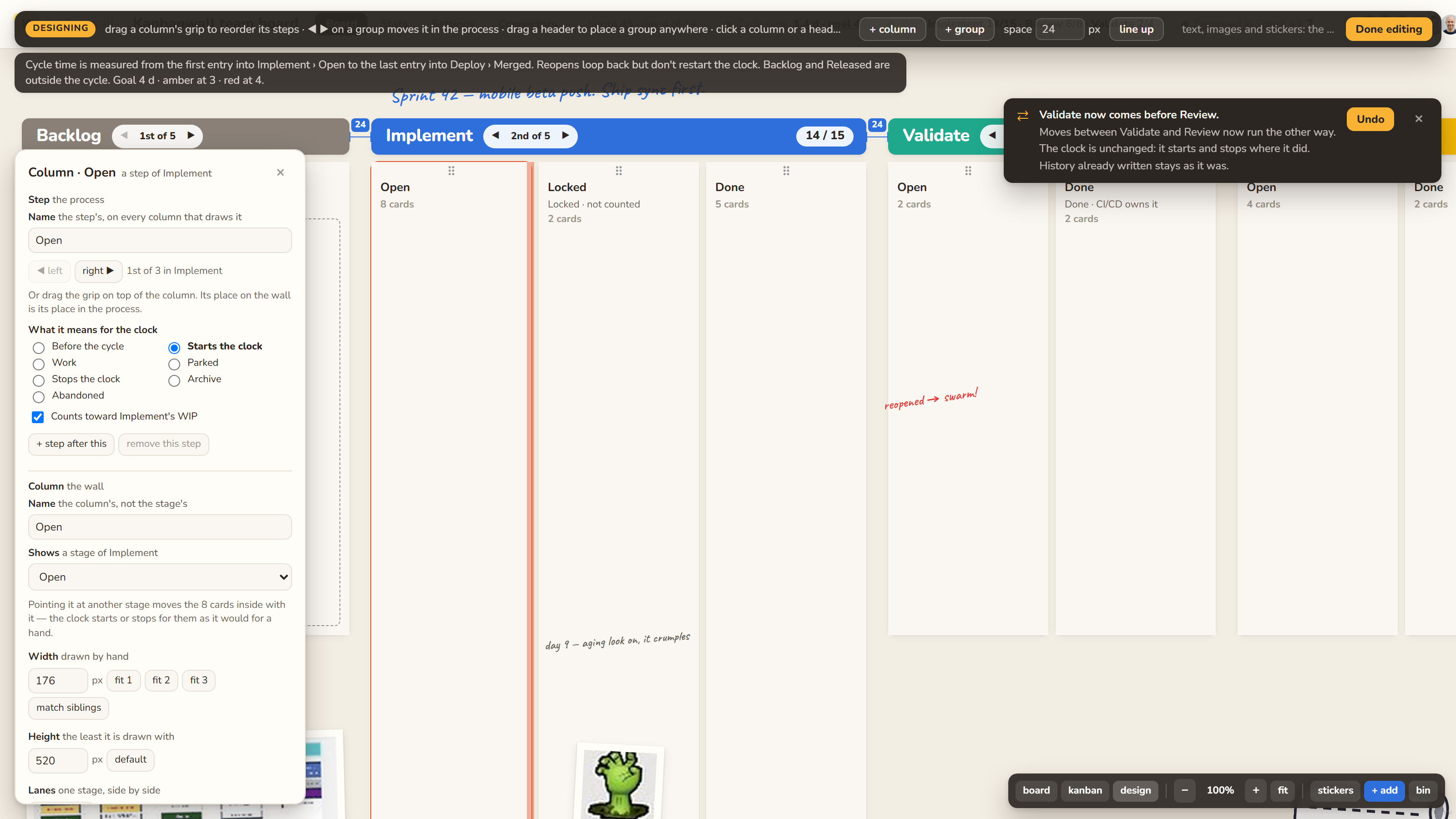
Press design, on the bar at the bottom right, and the wall becomes its own drawing board: the cards step out of sight and every column says which step it is. Click a column to say what its step means for the cycle-time clock, rename it, split it into lanes or give it a colour, and pull its edge to make it wider. Drag a column by its grip, or use ◀ ▶ on a phase's header, to reorder: the order of the wall is the order of your process, and a strip says what the change means, with an Undo. Settings › Workflow & cycle time keeps the summary, and says in one sentence where the clock starts and stops.
2Organic or grid
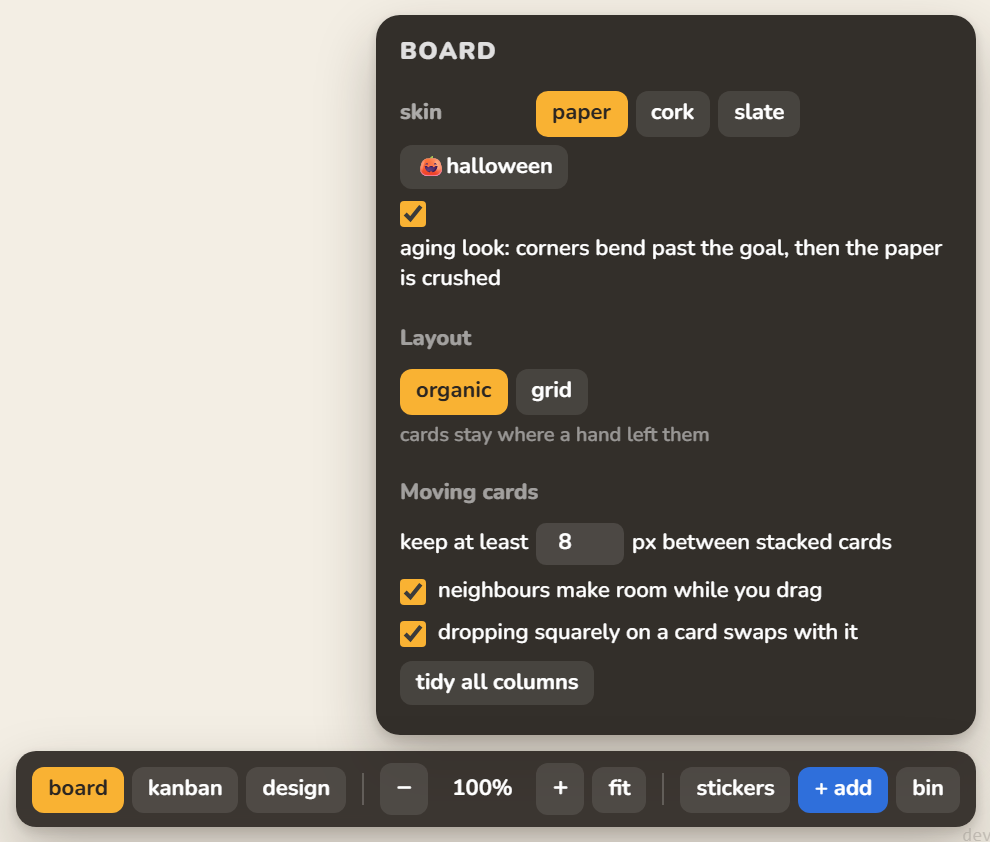
Cards can stay where a hand left them, a little crooked, like paper on a real wall. Or they can line up in a neat grid after every move. Pick the one your team likes in the board menu at the bottom right, under Layout. The same menu has the wall's skin and the aging look, where a card that runs past the goal curls its corners and then gets crushed.
3Dress your cards
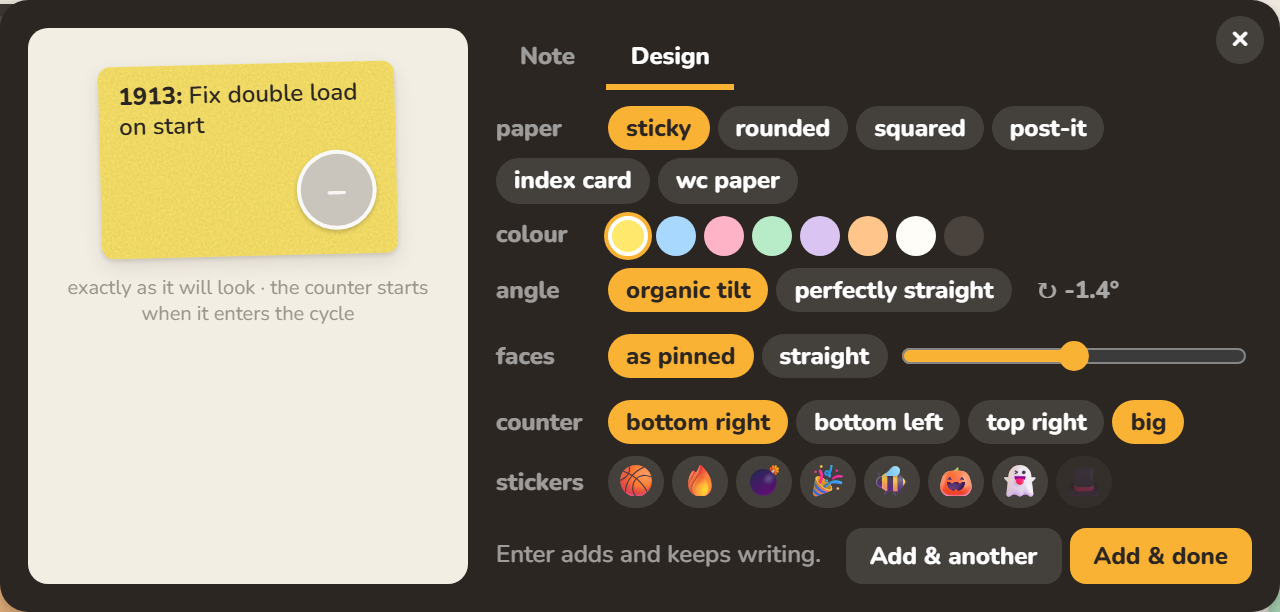
A new card has a Design tab: the paper it is written on, its colour, how much it leans, how the faces are pinned, where the counter goes, and a few stickers. Hats, glasses and moustaches are in the stickers drawer: drop one on a face and it fits itself there.





4Bring the work in from your tracker
Connectors, in the top bar beside Settings, links a board to Jira, GitHub Issues or Linear. Tell it which of the tracker's statuses belong to which of your steps, import issues in bulk with their history (so their counters start on the right day), and keep both sides in step: a card moved on the wall moves its issue, and an issue moved in the tracker moves its card. An automatic import brings new issues onto the wall by itself, as they appear.
5Make phases wider
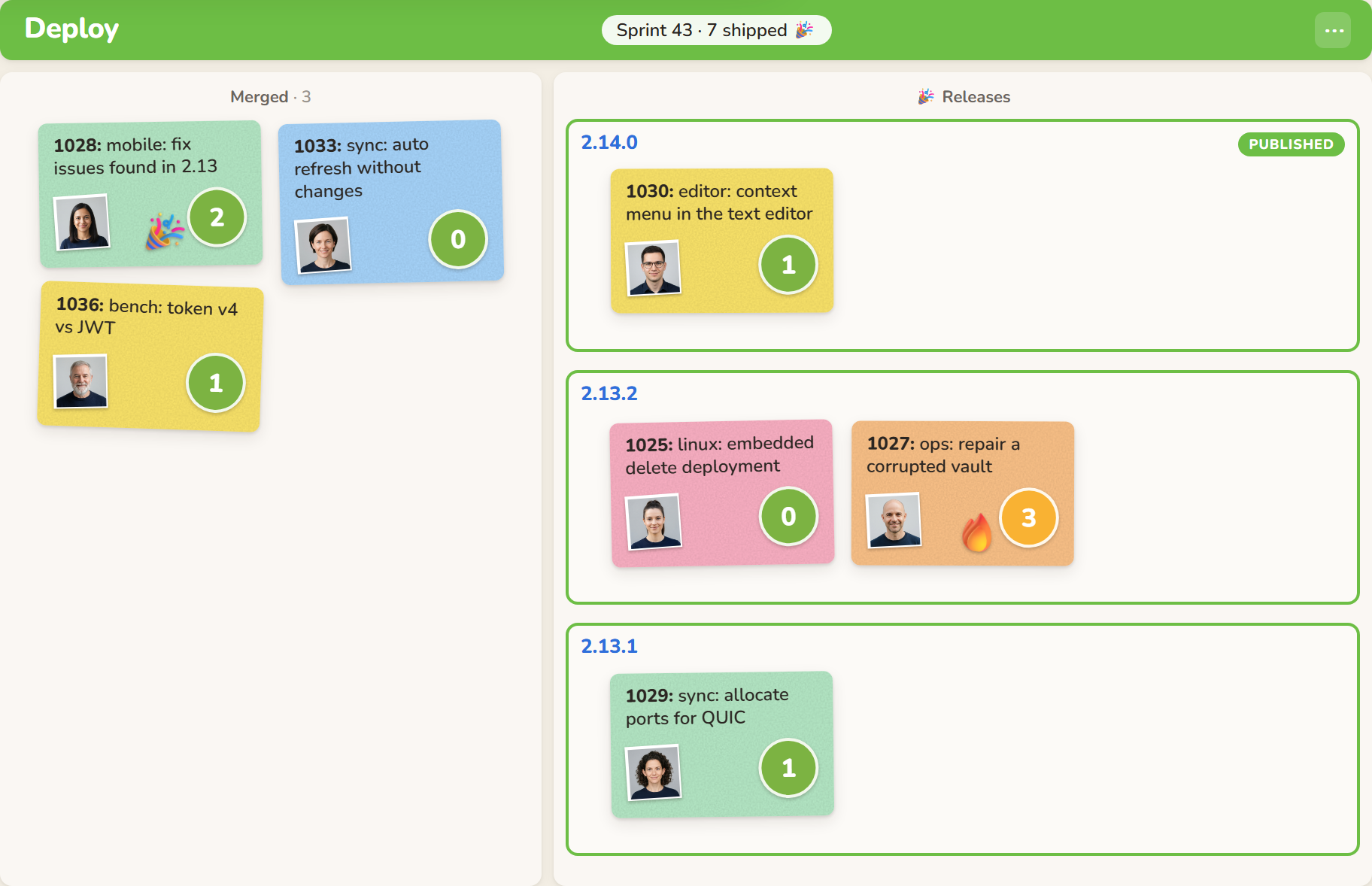
A board that is wider than it is tall fits on one screen, so the whole team sees what is going on at a glance. Make the columns wider in design: a wide column holds cards side by side, and finished work piles up sideways instead of running down the wall. Roomy boards are good boards.
6Jokes everywhere
We used to joke that some support teams wrote down whatever you told them on toilet paper, and then flushed it. We are not saying you should do that with anybody's suggestions. But now and then, a card deserves to be written on toilet paper: wc paper is one of the papers on a new card, and + add has it too.

The playground has all of this on it, with a team's worth of cards to try it on. Or read the kanbanwall way first.
Try a wall →